
Location Designer
The Location Designer is where a venue's pitches get their physical layout — a map view where each pitch is a rectangle you drag into place, resize and rotate. It's also where a pitch gets split into bookable zones, like halves or thirds. This page is the companion to Venues & Pitches, which covers creating the venue and its pitches in the first place.
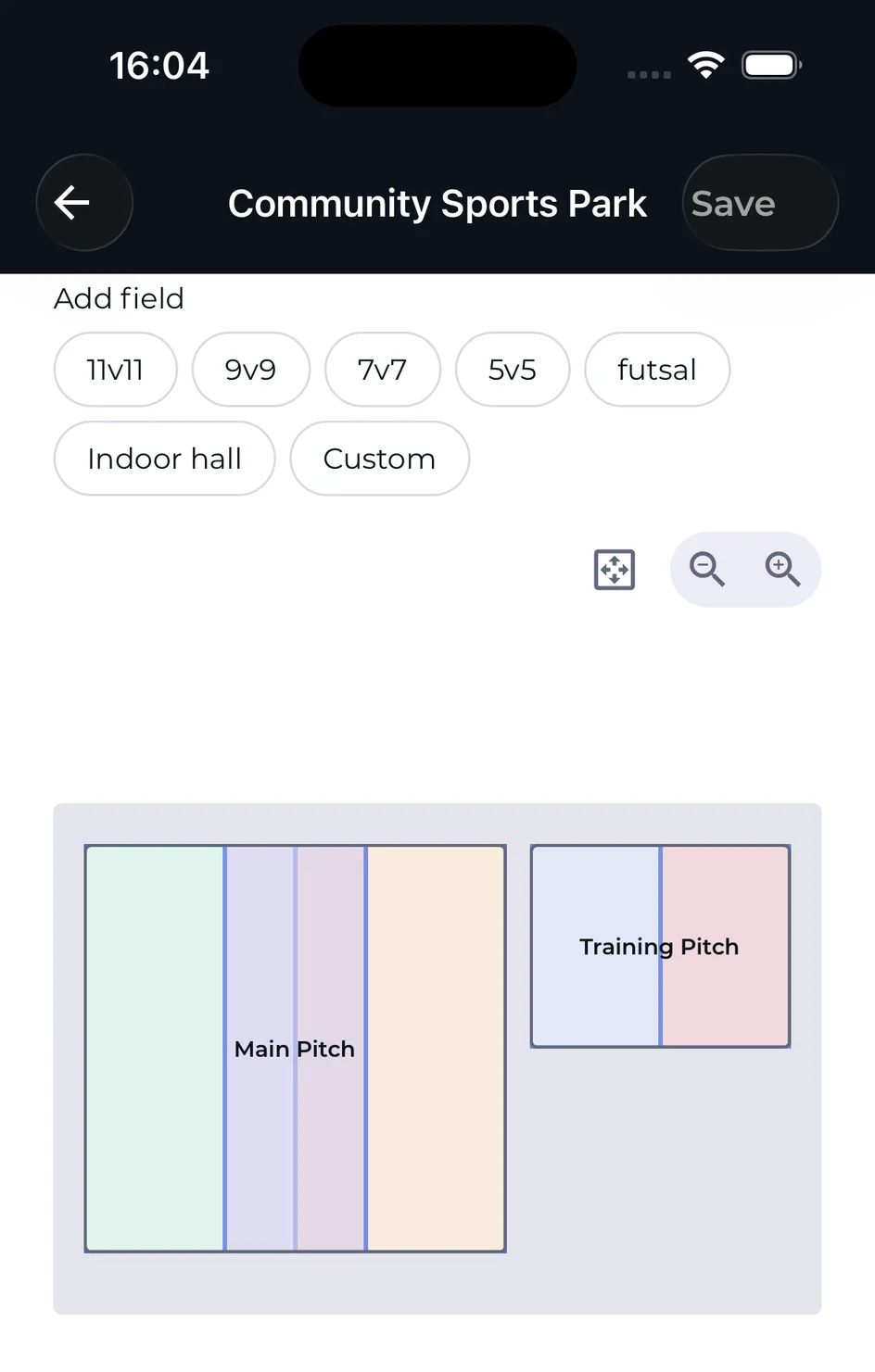
Opening the Designer
From the organization's Facilities → Pitches tab, tap the floor-plan icon on a venue's card. A viewer without the manage facilities capability can still open the designer to look at the layout, but gets no Save button and no editing controls.
Adding a Pitch to the Map
Tap Add field and choose a size preset — the same presets used when adding a pitch: 11v11, 9v9, 7v7, 5v5, Futsal, Indoor hall, or Custom. The new rectangle is placed automatically in the first free spot on the map, at that preset's real-world proportions, so a 5v5 pitch and an 11v11 pitch never look the same size by accident.
A pitch that hasn't been given a saved position yet — either brand new, or reset by the server — is shown with a dashed border. It only gets a real position once you save.
Positioning, Resizing & Rotating
Tap a pitch on the map to select it; a small action bar appears with:
| Action | What it does |
|---|---|
| Drag | Move the selected pitch anywhere on the map. |
| Corner handles | Drag a corner to resize the pitch. |
| Duplicate | Creates a copy of the selected pitch, same size and type, placed just off to the side. |
| Rotate 90° | Turns the pitch a quarter turn — useful for an indoor hall or a pitch that doesn't run parallel to the others. |
| Lock aspect ratio | When on, resizing keeps the pitch's length-to-width proportions instead of letting it stretch freely. |
| Split into zones | Opens the zone-preset picker — see below. |
| Delete | Marks the pitch for deactivation. A brand-new, unsaved pitch is simply removed from the draft; an existing pitch is deactivated on save, and its future bookings are cancelled. Either way, an Undo delete action stays available until you save. |
Zoom & Pan
The canvas is zoomed with the + / − buttons in the toolbar, from 50% up to 200% in 25% steps, plus a reset-to-fit button that snaps back to 100% and recenters the view. There's no pinch-to-zoom gesture on the canvas itself — panning around the map is a plain drag, and zoom level is always controlled from the toolbar buttons.
Splitting a Pitch Into Zones
Select a pitch and tap Split into zones to open the zone picker. Choose a preset:
| Preset | Available for |
|---|---|
| Full pitch (no split) | Every size |
| Halves | Every size |
| Thirds | 11v11, 9v9, Indoor hall, Custom |
| Quarters | 11v11, Custom |
| 2 × 2 | 11v11, 9v9, 7v7, Indoor hall, Custom |
| 2 × 3 | 11v11, Custom |
A 5v5 pitch or a Futsal pitch only ever offers Halves — there's no meaningful way to book a third of a 5-a-side cage. Once a preset is chosen, each resulting zone gets a preview on a small grid and an editable name (e.g. "Half 1", "Half 2"); a zone can't be left unnamed. The full pitch itself is always listed too, marked "Always present" — it's the zone a booking lands on when nobody asks for a specific half or third.
Zone splitting always works from one of the preset patterns above; there's no tool for drawing an arbitrary, free-form boundary across a pitch. This keeps the conflict-detection engine simple: a booking against "Half 1" always overlaps the full pitch and never silently misses a hand-drawn edge.
Splitting a pitch into zones is a PRO feature. On the Free plan the preset chips still show what's possible, each carrying a PRO badge; choosing one routes to the upgrade flow. Plans can change — see Payments & Packages for the current details.
Saving Your Layout
Every change — adding a pitch, moving it, resizing it, rotating it, splitting it into zones, deleting it — is a local draft first. Nothing reaches the server until you tap Save in the header. Trying to leave the screen with unsaved changes — back button, gesture, or the drawer — prompts you to keep editing or discard.
Save runs in a fixed order: new pitches are created first, then every moved or newly placed pitch is saved in one batch layout call, then each pitch with changed zones is re-cut, and finally any pitch marked for deletion is deactivated. If part of that sequence fails — for example a save that conflicts with someone else's more recent edit — you're shown which pitches by name still have unsaved changes, so you can retry without losing the rest of your layout.
Next Steps
Create a venue, add pitches with a size preset, type and surface, and the one-venue Free limit.
Set the venue's weekly hours, override them per pitch, and what happens when someone books outside them.
The full feature overview — the shared calendar, conflict detection, recurring bookings, closures and client appointments.